
How to save YouTube videos to camera roll
You save YouTube videos to your camera roll by downloading the file as MP4 through a browser converter, then moving it into the Photos or Gallery app. YouTube Premium's offline button does not put videos in your camera roll—it keeps them locked inside the YouTube app. I learned that the hard way when I tried to find a downloaded lecture in Photos and it simply wasn't there. This guide covers the path that actually lands a video in your camera roll on iPhone and Android, plus the workarounds when iOS refuses to import a file.
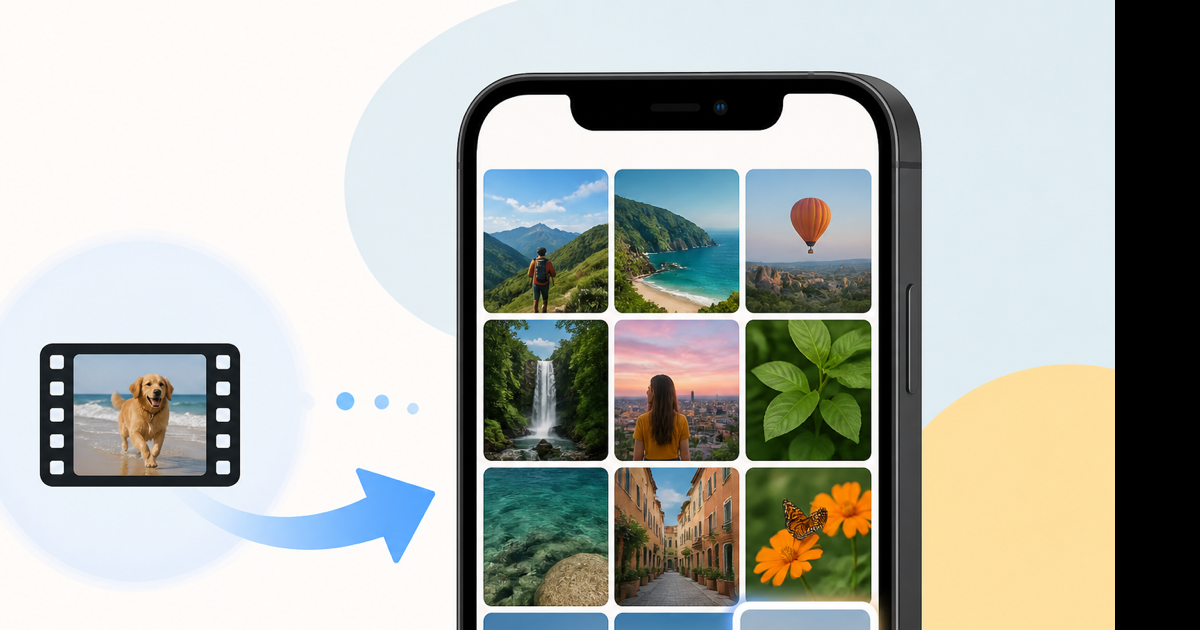
Camera roll vs YouTube offline: know the difference
People search how to save youtube videos to camera roll because they want the clip in Photos—next to screenshots, ready to post, edit, or AirDrop. That is not what Premium offline gives you.
| Goal | Premium offline | MP4 → camera roll |
|---|---|---|
| Shows in Photos/Gallery | No | Yes |
| Share in iMessage/WhatsApp as video | Awkward (link only) | Yes |
| Edit in CapCut, iMovie, InShot | No | Yes |
| Plays without YouTube app | Inside YouTube only | Yes |
| Costs money | Yes (~$14/mo) | Free |
If you only rewatch on a plane, Premium is fine. If you need the file in your photo library, you need the converter route.
iPhone: save a YouTube video to camera roll (step by step)
Tested on iOS 17 and 18. Safari works; Chrome on iOS follows the same flow.
- Open the YouTube video. Tap Share → Copy link.
- Open Safari. Go to a YouTube to MP4 converter.
- Paste the URL. Pick 720p—good quality, usually 40–90 MB for a five-minute clip.
- Tap convert, then tap the download link when it appears.
- Safari saves to Downloads (blue arrow in the address bar). Tap the file.
- Tap Share (square with arrow).
- Scroll and tap Save Video.
The video should appear in Photos → Recents within a few seconds. If Save Video is grayed out, the file may be in an unsupported codec—try re-downloading at a different quality or use the Files route below.
If "Save Video" doesn't show up
Sometimes iOS chokes on a weird container. Fallback:
- From Downloads, tap Share → Save to Files (pick On My iPhone).
- Open the Files app, long-press the MP4 → Share → Save Video.
Still stuck? The video might exceed what Photos handles well on older phones—trim a shorter test clip first with a video trimmer after saving to Files.
Android: save to Gallery / camera roll
Android naming varies by manufacturer, but the idea is the same: get an MP4 on disk, then let Gallery index it.
- Copy the YouTube link (Share → Copy link in the YouTube app).
- Open Chrome. Paste the URL into a YouTube to MP4 tool.
- Download the file. Chrome usually puts it in Downloads.
- Open Files or My Files. Tap the MP4.
- Tap Share or the menu (three dots) → Open with Gallery or Save to Gallery.
On Samsung phones, look for Save to Gallery in the share sheet. On Pixel, downloaded MP4s in the Downloads folder often appear in Google Photos automatically after a sync—check Library → Downloads in the Photos app.
Storage tip: a 10-minute 1080p file can hit 250 MB. On a 64 GB phone, stick to 720p unless you need the extra pixels.
When you only need audio in your library
Saving to camera roll implies video. If you wanted a song or podcast segment in your music library instead, skip MP4:
- Copy the YouTube URL.
- Use a YouTube to MP3 converter.
- Save the MP3 to Files (iPhone) or Downloads (Android), then import to Apple Music or your player of choice.
MP3 won't show in Photos—it belongs in audio apps. Wrong tool for "camera roll," right tool for playlists.
What won't land in your camera roll
No method gets these into Photos:
- Premium offline files — sandboxed inside YouTube
- Age-restricted videos without passing the sign-in check
- Private or deleted links
- Live streams still recording
- DRM-heavy studio releases
If the converter returns an error, try a different public video to confirm your connection works. The video itself may be blocked.
Legal note (short version)
Saving someone else's YouTube video to your camera roll for redistribution can violate YouTube's Terms of Service and copyright. Personal backups of your own uploads, Creative Commons content, or videos the creator said you can save—that's the realistic use case. Not legal advice; use judgment.
Conclusion
Camera roll means a real MP4 in Photos or Gallery—not Premium offline. Copy the link, convert to MP4, download, then Save Video. On iPhone, Safari → Downloads → Share → Save Video is the whole chain.
Need the file now? Use our free YouTube to MP4 converter—paste the URL, pick quality, download, and send it straight to your camera roll.