
How to download YouTube videos on iPhone
You can download YouTube videos on iPhone through YouTube Premium's offline feature inside the official app, or by pasting a link into a web converter and saving the MP4 or MP3 to the Files app. I've done both—Premium for commute playlists, Safari + converter when someone texts me a tutorial I need in iMovie. This guide walks through each path on iOS 17 and 18, including where files land and what to do when the Download button never appears.
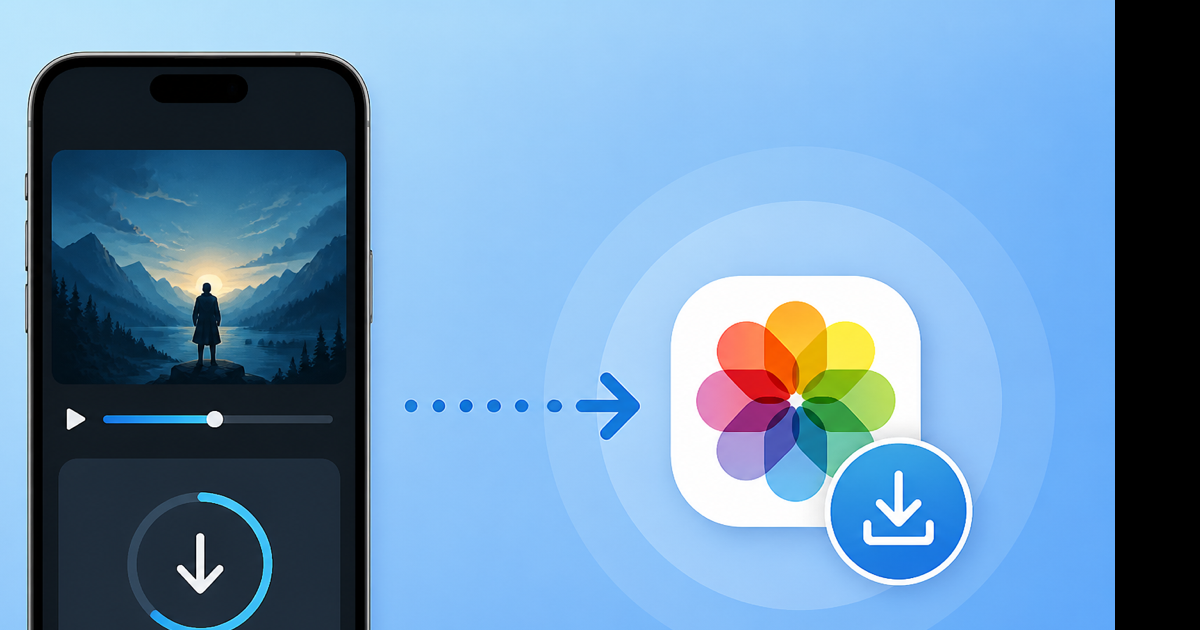
Before you start: two different "downloads"
iPhone users usually mean one of these:
| Method | Where the file lives | Editable in other apps? |
|---|---|---|
| YouTube Premium offline | Inside YouTube app → Library | No |
| Browser converter → MP4/MP3 | Files app / Downloads | Yes |
Pick Premium if you only rewatch inside YouTube. Pick a converter if you need the actual file on disk for editing, messaging, or archiving.
Option A: YouTube Premium offline (official)
- Install or update the YouTube app from the App Store.
- Sign in with a Premium account.
- Open the video.
- Tap Download below the title (down-arrow icon).
- Select quality. 720p is a good default on a 128 GB phone.
- Open Library → Downloads to watch offline.
Downloads expire if you go too long without opening YouTube while online—YouTube checks your subscription. Also, some music videos and kids content block offline save depending on the label.
Storage math: a 10-minute 720p offline file often sits between 150–250 MB. Check Settings → General → iPhone Storage before batch-downloading a course.
Option B: Save as MP4 through Safari (no Premium)
This is how I grab a video I need outside YouTube.
- In the YouTube app or Safari, open the video and tap Share → Copy link.
- Open Safari and go to a YouTube to MP4 converter.
- Paste the URL into the box.
- Tap convert. Pick 720p unless you need maximum quality (1080p files get large fast on cellular).
- When the download link appears, tap it. Safari puts the file in Downloads (blue arrow in the address bar on iOS).
- Tap the downloaded file → Share → Save to Files. Pick On My iPhone or iCloud Drive.
From Files you can AirDrop to a Mac, import to CapCut, or attach in Mail. That's the whole point of this method.
Cellular tip: a 5-minute 720p MP4 can be 80–120 MB. On a metered plan, wait for Wi-Fi.
Option C: Audio only (MP3 to Files or Music)
When you don't need pixels—podcast excerpt, song, lecture audio:
- Copy the YouTube link.
- Open YouTube to MP3 in Safari.
- Paste and convert at 192 kbps for music, 128 kbps for speech.
- Download and save to Files like the MP4 steps above.
To get audio into Apple Music, you need a Mac with Music app import or a third-party player that reads Files. iOS won't treat a random MP3 as an Apple Music library item without that extra step.
Where downloaded files go on iPhone
| Step | Location |
|---|---|
| Safari download | Downloads folder (in Safari UI) |
| After "Save to Files" | Files → On My iPhone → Downloads (or folder you chose) |
| Premium offline | YouTube → Library → Downloads (not visible in Files) |
Lost a Safari download? Open Safari, tap the Downloads manager (arrow in the URL bar), and look for the .mp4 or .mp3 name.
Troubleshooting on iPhone
"Download" missing under the video — You're not on Premium, or the uploader disabled offline. Use Option B instead.
Converter says video unavailable — Video is private, age-restricted, or region-blocked. Sign into YouTube in another tab won't always fix converter access; try a different public mirror of the content.
File won't open in Photos — MP4 from converters usually opens in Files or VLC, not Photos. That's normal. Import through an editor if you need it in the camera roll.
Storage full — Delete old Downloads in Files, or trim with the video trimmer after download to shrink duration.
Shorts and live streams
Shorts: Copy the Short's share link. Same converter flow. Files are small—often under 15 MB for a 30-second vertical clip.
Live streams: Wait until the stream ends and YouTube processes the replay. Live URLs frequently fail mid-broadcast.
Legal note
Downloading videos you don't own or lack permission to save can break YouTube's terms and copyright rules. Use Premium or converters for content you're allowed to keep—your uploads, CC-licensed material, or explicit creator permission.
Conclusion
Premium is fine for watching offline inside YouTube. For a file you control, copy the link in Safari, convert to MP4 or MP3, and stash it in Files.
Start here: YouTube to MP4 for iPhone — paste your link, download, save to Files. Free, no signup.