
How to download videos from YouTube to my phone
You download videos from YouTube to your phone with YouTube Premium's in-app Download button, or by pasting the link into a mobile browser converter and saving the MP4 file to your phone storage. Both iPhone and Android work the same way at the converter step—copy URL, convert, save. I keep a folder in Files called "Offline" for tutorials I might need on a train with no signal. This guide covers what "to my phone" actually means file-wise, how much space to budget, and why some videos refuse every method.
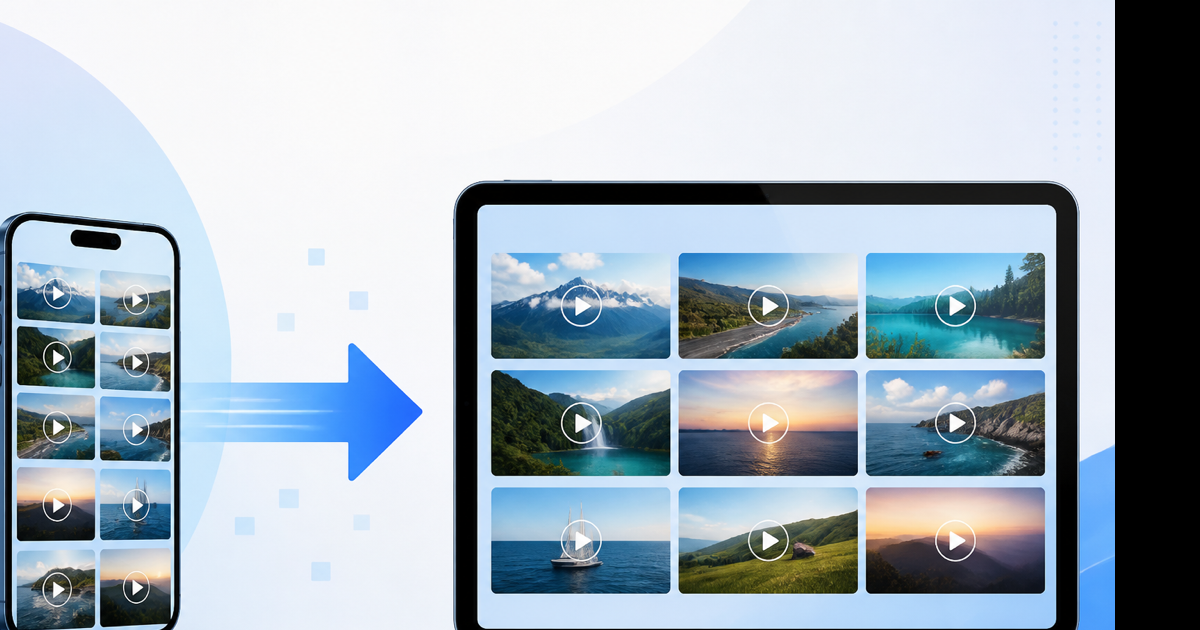
"To my phone" — file on disk vs offline in the app
When people search how to download videos from youtube to my phone, they usually want one of two outcomes:
| What you want | Method | Where it lives |
|---|---|---|
| Watch later inside YouTube | Premium → Download | YouTube app → Library |
| A video file you control | Browser converter → MP4 | Files, Downloads, or Gallery |
| Audio only (smaller) | Browser → MP3 | Files or music player |
Premium is fine for rewatching. It does not give you an MP4 you can text to a friend or drop into a mobile editor. For that, you need the browser path.
Before downloading: check your storage
Phones fill up quietly. Before grabbing a lecture series, open your storage settings:
- iPhone: Settings → General → iPhone Storage
- Android: Settings → Storage (wording varies by Samsung, Pixel, etc.)
Rough sizes for a 5-minute video:
| Quality | Approximate size | When to pick it |
|---|---|---|
| 480p | 40–70 MB | Limited storage, small screen |
| 720p | 80–140 MB | Default I'd use |
| 1080p | 150–300 MB | Only when detail matters |
A 720p ten-minute tutorial can hit 200 MB. On a 64 GB phone with photos already stacked, that's worth knowing upfront.
Method 1: YouTube Premium (official mobile offline)
If you pay for Premium, the YouTube app handles offline saves natively.
- Open the YouTube app on your phone.
- Sign in with your Premium account.
- Play the video you want offline.
- Tap Download (down-arrow icon) below the player.
- Pick quality—480p saves space; 720p looks sharp on most phones.
- Find saved videos under Library → Downloads.
Works on both iPhone and Android. Downloads stay inside YouTube's sandbox. You can't export them to WhatsApp or CapCut. They also expire if your subscription ends or YouTube can't verify your account online for too long.
Premium gaps: age-restricted content without passing the in-app age check, private videos, rentals, and some label-blocked music videos.
Method 2: Download MP4 to iPhone (Safari + Files)
This is the path when you need the actual video file on your iPhone.
- Open the video in YouTube. Tap Share → Copy link.
- Switch to Safari. Open a YouTube to MP4 converter.
- Paste the URL. Select 720p unless you know you need 1080p.
- Tap convert. When the download link appears, tap it.
- Open Safari's Downloads panel (arrow icon in the address bar).
- Tap the file → Share → Save to Files. Choose On My iPhone or a folder you created.
From Files you can AirDrop to a Mac, open in iMovie, or attach in email. That's the whole reason to skip Premium for this job.
Cellular warning: a 720p download might burn 100 MB of data. Wait for Wi-Fi on long videos.
Method 3: Download MP4 to Android (Chrome + Downloads)
Android's file path is more straightforward than iOS, though folder names differ by manufacturer.
- Copy the video URL from YouTube (Share → Copy link).
- Open Chrome. Go to the YouTube converter hub or straight to MP4.
- Paste the link. Convert at 720p.
- Tap Download when ready. Chrome saves to your Downloads folder.
- Open Files or My Files → Downloads to find the
.mp4.
Some phones offer to open the file in Gallery immediately. Others keep it in Downloads until you move it. Either way, you have a real file—not a YouTube-only cache.
Skip APK downloaders from random forums. A browser tab doesn't need install permissions and is easier to abandon if a site looks sketchy.
Method 4: Audio only when video isn't the point
Sometimes you download "videos" but only listen—commute podcast, music track, lecture audio.
- Copy the YouTube URL on your phone.
- Open YouTube to MP3 in your mobile browser.
- Pick 192 kbps for music, 128 kbps for speech.
- Download the MP3 and save to Files (iPhone) or Downloads (Android).
A five-minute track at 192 kbps is roughly 7 MB. Same content as 720p video might be 120 MB. Obvious trade when you won't watch the screen again.
Downloading multiple videos to your phone
YouTube doesn't batch-download through converters—one URL, one file. For a playlist of twenty tutorials:
- Copy each video link individually.
- Convert and save one at a time.
- Create a folder in Files (iPhone) or Downloads (Android) to stay organized.
Yes, it's tedious. Premium handles playlists inside the app if you only need offline replay there. For editable files, there's no magic one-click playlist rip on mobile without installing desktop software—which this guide skips on purpose.
If a single video fails mid-playlist, it's usually restricted or deleted. Test with a short public video to confirm your connection works, then retry the problem link.
When downloads to your phone fail
"Video unavailable" — Private, deleted, or region-blocked. No phone workaround.
Age gate — Premium sometimes works in-app after verification. Converters often can't access age-restricted URLs at all.
Download button missing — You're not on Premium, or the creator disabled offline. Use the browser converter.
Converter spins forever — Live stream still broadcasting, or the video runs hours long. Wait for the replay, or try 480p.
iOS won't show MP4 in Photos — Normal for some codecs. Files app or an editor is the right destination. See our iPhone YouTube download guide for Files-specific tips.
Storage full mid-download — Delete old files first. A failed partial download might still eat space in Safari Downloads.
Legal note
Saving videos you don't have rights to can violate YouTube's Terms of Service and copyright law. Personal backups of your own uploads, Creative Commons content, or videos where the creator said saving is OK—that's the intended scenario. No method breaks DRM on rentals or members-only posts.
Conclusion
How to download videos from youtube to my phone: Premium for in-app offline replay. Browser + MP4 when you need the file on iPhone or Android. MP3 when audio is enough.
Save a video to your phone now: Free YouTube to MP4 converter — paste your link in your phone browser, pick quality, download. No account required.