
How to download clips from YouTube on any device
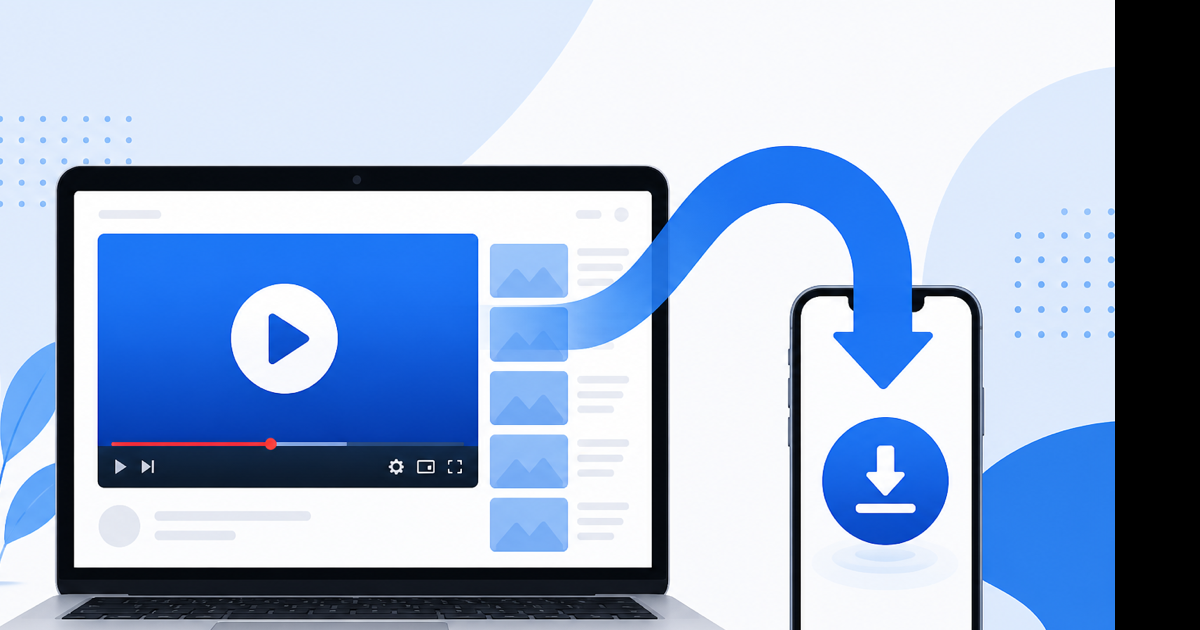
You download clips from YouTube by copying the video URL and saving the file through YouTube Premium (official offline) or a web converter (MP4 video or MP3 audio). I use Premium for long playlists on flights and a paste-URL tool when I only need a 30-second segment for a project. Below: what works on phone vs desktop, when you need video vs audio only, and the errors that usually mean the clip is blocked.
What counts as a YouTube "clip"?
A clip is any public YouTube video segment you want offline—not necessarily a YouTube Short or the official Clips feature creators use inside Studio. Most people searching how to download clips from youtube mean a short section of a longer video: a tutorial moment, a quote, a gameplay highlight, a song chorus.
You have three realistic outputs:
| Goal | Format | Typical size (3 min) |
|---|---|---|
| Watch offline with picture | MP4 (H.264) | 40–150 MB at 720p |
| Listen in a music app | MP3 (192 kbps) | ~4–5 MB |
| Smallest shareable file | MP3 (128 kbps) | ~3 MB |
YouTube does not offer a built-in "download this 15-second slice" button for viewers. You either download the full video and trim locally, or use Premium offline for the whole file.
Method 1: YouTube Premium (official, any device with the app)
If you already pay for Premium, this is the path YouTube wants you on.
- Open the YouTube app on your phone or tablet.
- Play the video that contains the clip you need.
- Tap Download (arrow icon) under the player.
- Pick quality (360p saves space; 1080p needs storage).
- Find the file in the app under Library → Downloads.
On desktop, Premium offline is limited—the mobile app is where offline shines. The catch: you cannot pull that file into iMovie or Premiere from the Downloads folder. It stays inside YouTube's sandbox. Fine for rewatching. Bad if you need to edit.
When Premium fails: private videos, most age-restricted content without a signed-in account that passes the age check, and some music videos with label restrictions.
Method 2: Download the full clip as MP4 (PC, Mac, phone browser)
For a file you can trim, share, or drop into an editor, save the video as MP4.
- Copy the video URL from the address bar (or Share → Copy link on mobile).
- Open a YouTube to MP4 converter in your browser.
- Paste the URL. Pick 720p unless you know you need 1080p (bigger file, slower download).
- Wait for processing—most three-minute clips finish in under a minute on a decent connection.
- Save the
.mp4to Downloads (PC/Mac) or the Files app (iPhone/Android).
I tested a 2:47 clip last week: 720p came back around 48 MB. Same clip at 1080p was 112 MB. Not worth it for a talking-head podcast segment.
After download, trim the exact moment with a local editor or Videozify's video trimmer if you already have the file on disk.
Limits to expect: age-gated videos, private links, live streams that haven't finished, and playlists (one URL = one video). Don't expect a converter to batch-download a 200-video playlist.
Method 3: Audio only (when you don't need the video)
Sometimes the "clip" is just sound—a line from an interview, a riff, a voiceover reference.
- Copy the YouTube URL.
- Use a YouTube to MP3 converter.
- Choose 192 kbps for music; 128 kbps is fine for speech.
- Download the MP3 and import it into your editor or phone music library.
A four-minute track at 192 kbps lands near 5.5 MB. You'll lose video obviously. That's the trade.
For more format options (WAV, M4A), browse the YouTube converter hub.
Phone vs computer: which is easier?
iPhone/Android: Safari or Chrome works. Paste the URL, download, then move the file from Downloads to Files or Gallery. iOS may rename the file—check the share sheet if Photos doesn't see it.
Windows/Mac: Same flow, but you get a clear Downloads folder path. Easier for editing workflows.
Chromebook: Browser-only converters are usually the simplest option; avoid installing random Chrome extensions that request broad permissions.
If the site throws a 500 error on a huge live stream archive, try a shorter public video first. Some hosts cap file size around 500 MB per job.
Legal and practical warnings (read this)
Downloading clips you don't have rights to can violate YouTube's Terms of Service and copyright law. Personal backups of Creative Commons videos, your own uploads, or content the creator explicitly said you can save—that's the intended use case.
Red flags that mean a download probably won't work:
- "Sign in to confirm your age"
- "Video unavailable"
- Members-only or rental content
- DRM-protected studio releases
No tool fixes those. Stop and find another source.
Conclusion
Fastest path: copy the URL, pick MP4 if you need video or MP3 if you only need sound, save the file, trim if necessary. Premium works when you just want offline replay inside the app.
Ready to save a clip? Use our free YouTube to MP4 converter—paste the link, choose quality, download. No account required.