
How do you download a playlist from YouTube?
You download a playlist from YouTube by saving each video separately—either with Premium offline inside the app, or by copying one video URL at a time into a browser converter. There's no supported way to paste a playlist link and get a folder of MP4s in one click on Videozify. I use the one-by-one method for workout mixes I want in the Files app; Premium users often prefer the in-app Download button on the playlist header. This guide walks through both paths with time and storage estimates.
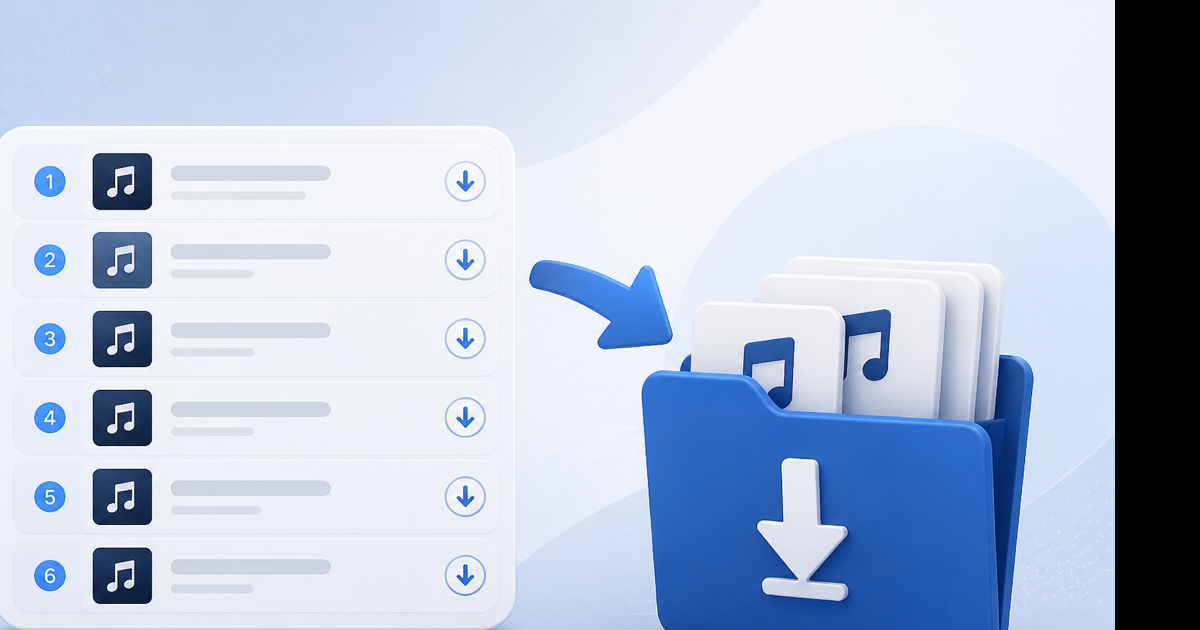
Pick your goal first
how do you download a playlist from youtube can mean two different outcomes:
| You want… | Best path |
|---|---|
| Watch offline in YouTube app | Premium → Download playlist |
| MP4/MP3 files on disk or phone | Converter, one URL per video |
| Share files with someone else | Converter—Premium won't export |
| Smallest total size | MP3 per track, not MP4 |
Decide before you start. Switching halfway through a 40-video list wastes time.
Path A: Premium offline (fastest for in-app replay)
Works on iPhone, Android, and some tablets with the YouTube app.
- Subscribe to YouTube Premium.
- Open the playlist in the YouTube app.
- Tap Download all or the download arrow on the playlist banner.
- Select quality—480p or 720p saves space on long lists.
- Open Library → Downloads to watch offline.
Files stay in YouTube. You won't find them in Files, Finder, or Explorer. Subscription lapse can remove access.
For flights I still use this when I don't need to edit—it's less tapping than the manual converter loop.
Path B: Save each video as MP4 (local files)
Use this when you need real files—for editing, archiving, or playing outside YouTube.
On PC or Mac:
- Open the playlist in a desktop browser.
- Click video 1. Copy the URL from the address bar.
- Open a YouTube to MP4 converter in a new tab.
- Paste, convert, pick 720p, download to Downloads.
- Click Next in the playlist (or return to the list). Copy video 2's URL. Repeat.
On iPhone or Android:
- Open the playlist in the YouTube app or mobile browser.
- Play the first video → Share → Copy link.
- Open Safari/Chrome → Videozify → paste → download.
- On iOS: Share → Save to Files. On Android: file lands in Downloads.
- Back to playlist. Next video. Repeat.
Organizing tip: Create a folder before you start—~/Downloads/Course-Module-3/—and move each MP4 in as it finishes. Default names like video.mp4 overwrite each other if you're not careful.
Path C: Audio playlist as MP3 (smaller, faster)
Music compilations, podcast series, lecture audio—skip video.
- Copy the first video URL from the playlist.
- Open YouTube to MP3.
- Choose 192 kbps for music.
- Download. Repeat for each track.
A 30-song playlist at 4 minutes each ≈ 30 × 5.5 MB ≈ 165 MB as MP3. Same list as 720p MP4 could exceed 3 GB.
More formats live on the YouTube converter hub.
Tracking progress on long playlists
For lists over 20 videos, use a simple checklist:
- Note total count from the playlist header ("48 videos")
- Tick off each URL after download
- Log failures separately (age gate, private video)
Spreadsheet optional. Notes app works. The point is not losing your place when you pause mid-batch.
Speed: expect 45–90 seconds per video including your clicks and a short processing wait. Budget real time—a 48-video list is an hour's project, not a coffee break.
Common failures mid-playlist
- Video unavailable: uploader deleted it or made it private—skip.
- Age restriction: sign in on YouTube, pass the check, then retry—or skip.
- Converter timeout: very long live archive; try again or skip.
- Duplicate URLs: some playlists repeat the same video—check before re-downloading.
Read is it possible to download a youtube playlist for the big-picture limits before committing to a huge list.
Conclusion
Download a playlist by choosing Premium for in-app offline or a converter loop for local MP4/MP3 files. Either way, know it's multiple steps—not one paste.
Saving the first track now? Use our free YouTube to MP4 converter—paste one link, download, then work through the rest of the list.